I need to get back to an app running on iPadOS to edit a few things, but I am kind of locked out of the app.
Bceause I want to use the entire screen of the iPad, I turn off and lock the menu bat and toolbar. Thing is I need those components when developing the app.
When the app starts, a script checks if the platorm is iPad, and if so, everything is hidden and locked and the app is logged in witha an account that has minimal permissions.
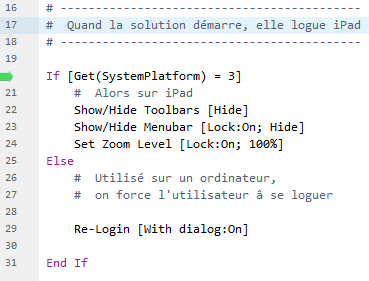
When the platform is not iPad, then it's a PC, whether Windows or MacOS, then I initiate a relogin so the user logs with a [full access] account. But that does not work. Here is the script :
First, the user iPad user is automatically logged in, then the script runs. Since I am on Windows, line 23 - 24 are not executed and the Re-Login let me login with a [full access] account. This is what the Window looks like :
No menubar and a limited toolbar with everything locked .
When I created the app, I was working on a Mac, and if my memory is right on a Mac you could use the menus since they are not part of the Window, thus not invisible and locked.
The keyboard shortcuts work, I can for example CMD+L or CTrl+L to change to Layout mode, but whrre are the menubar and toolbars ???
Looks like lines 22-24 are always executed. The app was created using FMPRO 19, and now I use FMPRO 25, Has something changed since 19 ?
@bdbd , the app is not open from a server, it runs stand alone on the iPads. Running an app hosted or not should have impact on global variables only, is not it ?
@Susurrus , if I could find the shortcut that open the Script workspace - seems there is none -, I would change my Startup script to hide bars when running on an iPad and show bars when running from a computer. I thought there were command line switcheswhen starting filemaker from the command line, or a key you can press whwn opening a file that would prevent any script running when you open a file.
@weetbicks , my computer is so fast that I can not see what is going on.
Seems like the only way to solve my issue will be running Filemaker on MacOS. I will install it on my Mac mini where FMS is running.
A FileMaker file remembers a number of settings when open unhosted on a desktop computer. Menu settings, window size, last opened layout, global variables, etc.
@weetbicks is suggesting you open your solution with the debugger open when on desktop. This will help you see what’s up before the startup script kicks in and see what is going on with scripts. Not sure what you mean about the speed of your computer.
Holding shift when opening a file will give you a chance to login with a different user. If you hit escape like crazy when opening a file you can some time interrupt on open scripts. But the good news is there is a shortcut to open the Script workspace.
When I start the debugger and then open the file , I am told that hhat my privileges do not allow me to debug the Script Debugger is empty. Then the Re-Login is displayes. I login as an administrator and the Debugger shows what is in the screen capture - I omited commented lines. See the green arrow points to line 20 as if his script has not yet run, but it has since line 29 ran. This is weird. I click run, re-logi again and the Script Debugger is empty. I close the window.
I hit Ctrl + Shift + S, and the Scrit workspace shows up, thanks for the tip !
I will now modify my Startup script and post back.
No error! The script was at line 18. The first login dialogue box you saw was initiated by the script debugger because the privilege set at the time did not allow you to see the code.
Also, once you have the script workspace open, select iOS from the client target filters. This will hilite script steps and script step options that will not run on iOS.
I modified my Startup script and was able to change the logic. I may have to fine tune it before delivering the app, but now I can add the modifications I was asked to. I marked @Susurrus post as the Solution, but all of your comments were helpful.

 .
.